Use the IIO GUI for Gigabit Ethernet reception, display, recording and transmission, or GNU Radio for USB reception. Complete host installation and connection, then follow the hardware connections.
¶ Choose an application and data path
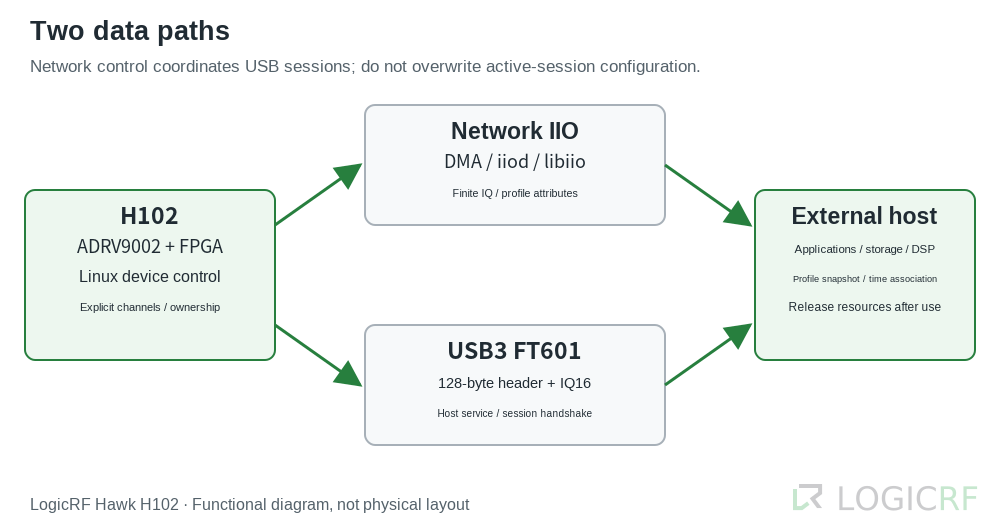
| Task | Application and path | Requirements |
|---|---|---|
| Network reception, spectrum, time plots, sweeps and IQ16 recording | H102 IIO GUI over Gigabit Ethernet IIO | Network access to H102 and matching installed device services |
| Network or USB reception, custom processing and cf32 recording | GNU Radio Companion with gr-logicrf | Ethernet for control; USB additionally requires FT601 connected directly to the flowgraph computer, with its local USB backend and FTDI library installed |
| GUI tone or preloaded cyclic IQ transmission | H102 IIO GUI with network control | Connect a suitable load or an approved attenuated loopback before explicitly enabling TX |
The IIO GUI does not use the FT601 USB data port and has no USB backend selector. Connecting a USB cable does not change the GUI transport. For USB IQ, use the GNU Radio USB workflow. Only one application should control a board at a time.
¶ Before you start
- Obtain matching software from the download table and use Kuiper 1.2.1 with first-boot checks; matching services are included. Ordinary application access uses only the device IP.
- Connect the computer and H102 to a mutually reachable network. Replace example addresses with the actual device IP.
- First reception can use an unconnected input. To observe radio signals, connect a suitable antenna to RX1A or RX2A for the selected channel. Noise without a signal source is expected.
- Close other applications using this H102. Stop the current task before changing profiles, channels or data backends.
¶ GUI control guide
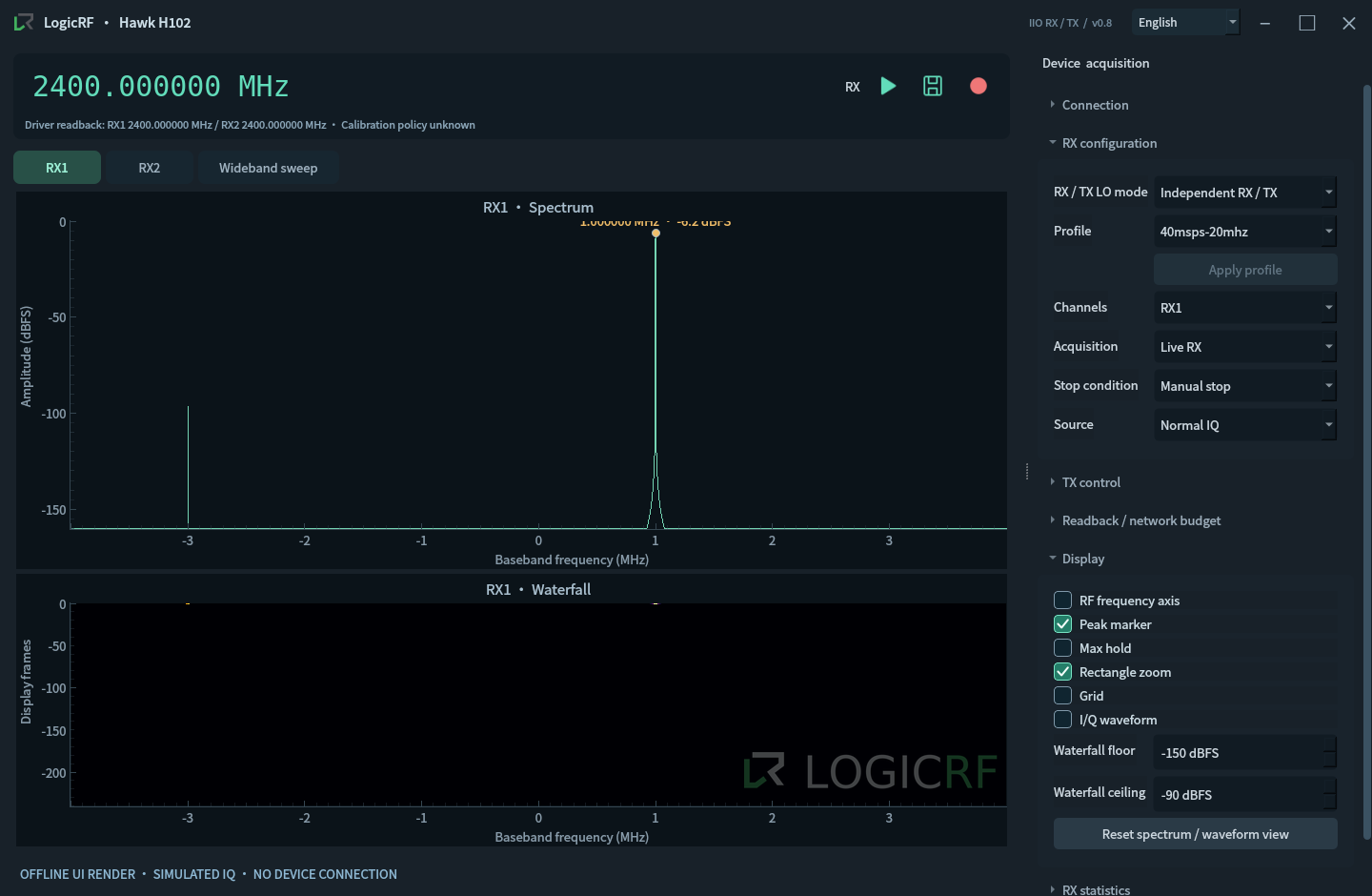
This is an offline UI render with simulated IQ and no H102 connected, not a measured spectrum or performance result. Its frequency, 40 MSPS / 20 MHz label and traces illustrate the controls. For first Ethernet reception, use 4 MSPS / 2 MHz as described below. The full original offline notice remains at the bottom; select the image to view it at full size.
| Location | Controls and purpose |
|---|---|
| Large digits at the top | RX center frequency; scroll over a digit, or enter MHz and press Enter |
| Three icons beside RX | Receive start/stop, export latest IQ snapshot, and whole-session recording start/stop, in that order |
| RX1 / RX2 tabs above the plots | View the corresponding receive channel; Wideband sweep shows segmented scan results |
| Connection in the right panel | Enter the IP, connect/refresh or disconnect; select the section heading to expand it |
| RX configuration | Select profile, channels, acquisition mode, stop condition and source, then apply the profile |
| TX control | Explicit TX settings and start/stop; leave it unused for receive-only tasks |
| Readback / network budget and Display | Check actual settings and bandwidth, then adjust peaks, axes, zoom and waterfall |
¶ First network reception in the GUI
After installation and launch setup, run from the GUI package root:
Linux PC · Use the connected device’s actual IP or URI and your local installation paths.
bash ./launch.sh --host 192.168.1.100
Replace the address with the actual device IP. English and Simplified Chinese are available from the title-bar language selector. The steps below use English control names.
- Expand Connection in the right panel. Enter the address in IP / host, then select Connect / refresh. Wait for the connected state and actual device settings. This section collapses after connection.
- Expand RX configuration. For a first session, select Independent RX / TX,
4msps-2mhzand RX1. If the selected profile differs from the active one, select Apply profile. Wait for readback to show 4 MSPS / 2 MHz per channel. A dropdown selection alone does not apply a profile. - Set the RX center frequency with the large frequency control at the top. Scroll over a digit to adjust that position, or enter a value in MHz and press Enter. Confirm that the device frequency shown beneath it has updated before receiving.
- Select Live RX, choose Timed stop, and use 10 seconds for a first session. Select Normal IQ as the source. This acquires RF receiver data; a digital test source is not an antenna signal.
- Select the RX play icon at the top. After preparation, the RX1 tab displays spectrum, waterfall and I/Q plots, and the received sample count increases. The same icon becomes Stop while running; hover over icons for their action labels.
- Wait for the timed session to end, or select the RX stop icon. Wait for reception and recovery to finish before changing profiles, disconnecting or switching applications.
A successful first session has: matching profile and frequency readback, received IQ with an increasing sample count, no reported task error, and confirmed recovery after stopping. A moving spectrum alone does not prove lossless IQ reception. Use Troubleshooting if reception does not start or stopping fails.
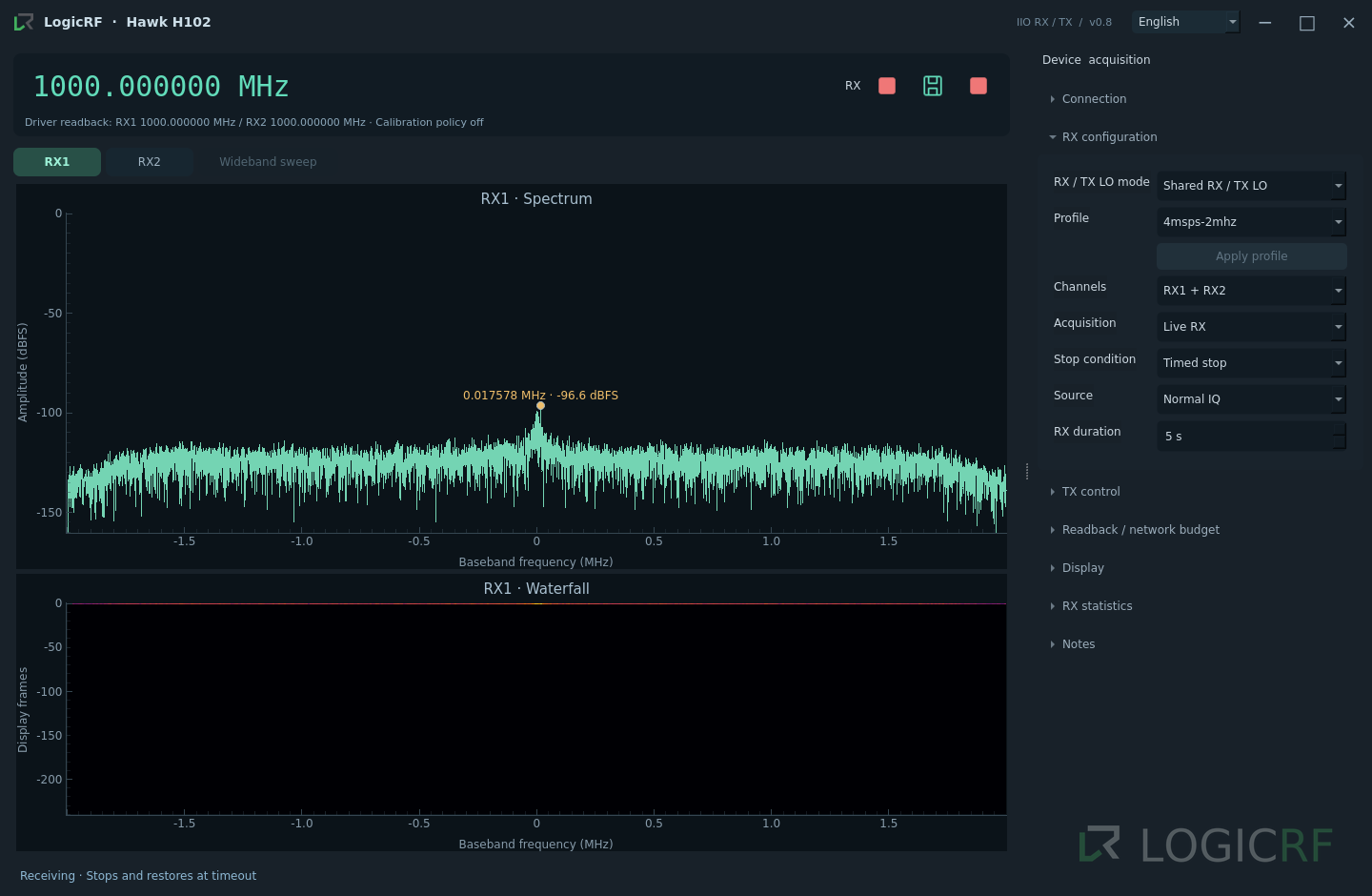
Actual IIO reception at 4 MSPS / 2 MHz and 1 GHz with both RX channels enabled; RX1 is displayed. The plots use received IQ. Signal appearance depends on input, tuning and gain; this figure identifies the running interface and does not specify a noise floor or receiver sensitivity.
¶ Channels, tuning and acquisition modes
| Control | Operation |
|---|---|
| Channel | While idle, select RX1, RX2 or RX1 + RX2; view each selected channel in its RX tab |
| Profile | Select and apply a built-in sample-rate/RF-bandwidth pair; use actual readback, as described in Profiles |
| Top frequency control | The two RX channels share a carrier. Independent mode separates RX and TX carriers; shared LO mode uses one carrier for RX and TX |
| Live RX with Manual stop | Receive within one profile until stopped; display history is not a whole-session recording |
| Live RX with Timed stop | Stop automatically after 1–300 seconds |
| Single capture | Acquire 65,536 IQ samples per channel; dual channels are acquired in sequence, without a simultaneous-trigger or continuous-lossless guarantee |
| Segmented sweep | Tune and acquire one channel in successive frequency segments |
You can retune during live reception, but tuning interrupts acquisition. The plots then show data from the new frequency. Recording locks tuning: end recording before changing frequency. Stop before changing sample rate, RF bandwidth or the channel combination. Dual reception does not automatically provide sample or phase synchronization between channels.

Offline control example: scroll over a frequency digit, or enter MHz and press Enter. The line below shows device frequency readback. The three RX icons control receiving, the latest IQ snapshot and whole-session recording, respectively. Start and stop share one control; check the displayed task state and result.
¶ Spectrum, time plots and sweeps
- Select an RX tab to view that channel. Spectrum and waterfall show frequency content; the I/Q plot shows the current data block in time.
- Display settings include the RF frequency axis, peak marker, maximum hold, rectangle zoom and I/Q waveform. You can zoom, pan and reset the plots.
- The RF axis uses the actual carrier at acquisition time. dBFS is a digital relative level, not calibrated RF power in dBm. Changing a plot axis does not tune hardware.
- The waterfall stores display frames. It is neither a complete IQ recording nor an exact time scale in seconds.
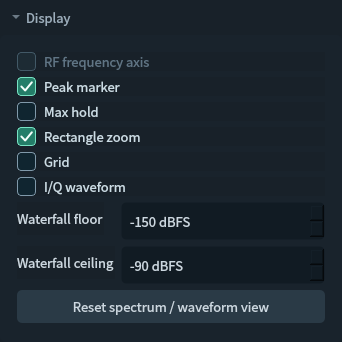
Offline control example: Display contains peak markers, max hold, rectangle zoom, I/Q waveforms and waterfall levels. The RF frequency axis needs applicable received data; disabled controls are unavailable in the current state. Display settings do not change the RF configuration.
For a sweep, stop reception, select a single RX, independent RX/TX mode and Segmented sweep, then set the start/stop frequencies, FFT size and averaging. Enable repeat scanning for repeated sweeps, then select the RX play icon. For a wide-span preview, apply Fast panorama · 40 MHz / 2048 bins before starting.
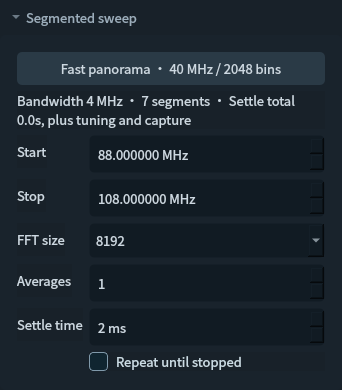
Offline control example: set start/stop frequencies, FFT size and averaging. Repeat scanning runs successive sweeps. Fast panorama selects its preset; wait for it to apply before starting. No scan is running in this figure; the estimated segments and wait time are not measured sweep performance.
Frequency segments are acquired sequentially, not simultaneously across the full displayed span. Short signals can occur while another segment is being acquired. Stop and wait for the original center frequency to be restored. Saving a spectrum exports spectral results and sweep information, not continuous IQ over the whole span.
¶ Recording and snapshots
The save and record icons perform different operations:
| Action | Output | Use |
|---|---|---|
| Export latest IQ snapshot, save icon | Latest complete block per channel as rxN.bin, with snapshot.json |
Save a current block or single-capture result |
| Record raw IQ, round record icon | IQ received from a new recording session; successful output is rxN.iq with recording.json |
Record an entire receive interval |
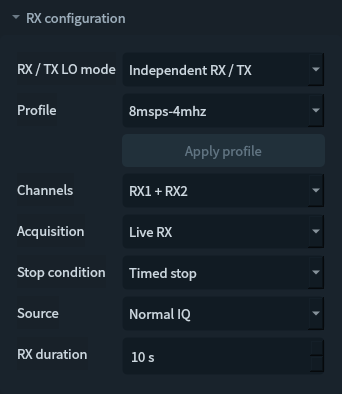
Offline control example: 8 MSPS / 4 MHz, RX1 + RX2, Live RX and a 10-second timed stop. Select RX1 or RX2 for one channel. Use the top round record icon to start a new recording, then check the completed files and recording.json.
To record:
- Stop any existing reception. Confirm the profile, channels, frequency and source, then select live reception and the required stop condition.
- Check free space and sustained storage speed. The default output root is
~/h102-iio-captures; each task creates its own directory. - Select the round record icon to start a new receive-and-record session. Previously displayed data is not added retrospectively. A timed session ends automatically; use the stop-recording icon for a manual stop.
- Wait for reception to stop, queued data to be written and file checks to finish. Open files or close the application after the result and recording directory are shown.
The GUI checks device overflow, received and written byte counts, file sizes and checksums. A recording.json with status: PASS_ADC_DMA_TO_FILE_NO_DROP and absolute_continuity_proven: true means the corresponding device-continuity and file checks passed for that recording window. It does not qualify every profile, host or RF condition.
Failed or interrupted recordings retain .partial files and error information. Do not rename them as completed recordings. Ordinary live display does not perform the same whole-recording checks; smooth plots cannot replace the recording result.
¶ File formats and time
| Source | Format | Metadata |
|---|---|---|
| IIO GUI snapshot | rxN.bin, little-endian signed int16, interleaved I/Q, 4 bytes per complex sample |
snapshot.json |
| IIO GUI recording | rxN.iq, the same IQ16 layout |
recording.json |
| GNU Radio recording examples | rxN.cf32, little-endian complex float32, 8 bytes per complex sample |
Recording manifest and USB index where applicable |
Read sample rate, channel and center frequency from the corresponding metadata, rather than guessing from a file length or extension. GUI IQ16 is not GNU Radio cf32. See the C++/Python examples for programmatic access.
GUI network IQ does not include the native USB GNSS header. GNU Radio's USB path preserves integer sample indices and time-validity fields; its IIO path uses relative/host output time labels. Valid digital time does not establish calibrated absolute UTC or RF delay at the antenna port. See GNSS and timestamps.
¶ Transport and storage budgets
IQ16 demand is actual sample rate per channel × channel count × 4 bytes. The matching software uses a 64 MB/s aggregate Ethernet admission budget. At a given rate, two channels require twice the traffic of one.
| Receive combination | IQ16 input | Continuous Ethernet budget |
|---|---|---|
| Single RX at 8 MSPS | 32 MB/s | Within budget |
| Dual RX at 8 MSPS; single RX at 16 MSPS | 64 MB/s | At the budget limit |
| Dual RX at 10 MSPS; single RX at 20 MSPS | 80 MB/s | Exceeds budget |
| Single/dual RX at 40 MSPS | 160 / 320 MB/s | Exceeds budget |
Admission is a prerequisite, not a guarantee: network, host and storage conditions still affect results. Finite snapshots can read limited blocks at high sample rates; that does not establish continuous operation at the same rate. Reduce rate or channels, or use a prepared USB path when the Ethernet budget is exceeded.
At 40 MSPS, USB frames including the 128-byte header require about 162.5 MB/s per channel or 325 MB/s for dual RX. gr-logicrf admits up to 320 MB/s of combined IQ16 payload; frame overhead must also be allowed for. Conversion to cf32 makes dual 40 MSPS GNU Radio recording approximately 640 MB/s. Use host storage capable of sustaining the actual rate; the system SD card is not the default target for this workload.
¶ USB reception with GNU Radio
- Install gr-logicrf using GNU Radio setup. For USB, also obtain the separate USB host source ZIP 1.0.0-r2. On the PC physically connected to FT601, an administrator follows USB host setup to supply the separately licensed FTDI/libusb inputs, build a payload and install its backend/service and user permissions. The source ZIP contains no FTDI library and is not an installed backend. If you already received a matching prepared payload, use its installation procedure instead of rebuilding it. Installing gr-logicrf alone does not enable USB IQ.
- Keep Ethernet connected for device control. Connect the FT601 USB3.0 data port directly to that computer. The UART/USB2 console port is not an IQ data port.
- Open a writable copy of
h102_sdr_single_rx.grcin Companion. Set the device IP and Backend =usbin H102 Interactive RX Session. Use the channel and profile blocks to select one RX and a built-in profile. For a first session, use 4 MSPS / 2 MHz and RX1. - Generate and run the flowgraph, then start reception in its Qt panel. Check actual settings, received counts, plots and errors. After stopping, wait for completion.
- For complete recording, use
h102_iq_record_single_rx.grcor the dual recording example and check its completed manifest. A standalone File Sink does not provide the same integrity checks.
USB supports single/dual RX; mixed operation is 1 RX + 1 TX, not dual RX plus TX in the same mixed session. Device IP access does not forward USB data to another computer. See API and data protocol for advanced integration; ordinary users do not manually execute the underlying stop protocol.
¶ Transmission and stopping
Before transmission, follow the hardware connection requirements and connect a suitable load, antenna or approved attenuated loopback. Check channels, frequency, waveform and attenuation. Never connect TX directly to RX.
In the GUI's TX control section, select TX1, TX2 or both, then set center frequency, attenuation, waveform and duration. Select its transmit icon to start; the same control stops transmission while running. A timed session also turns off automatically. When RX monitoring is enabled, stopping this TX task ends that RX/TX session together. Connecting or applying a profile does not start RF transmission.
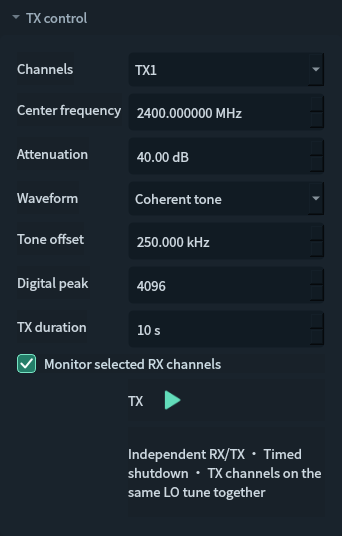
Offline control example; no RF was transmitted. Independent RX/TX mode uses this TX frequency control; shared LO uses the main shared frequency. The displayed values are not recommended transmit settings. Set parameters for your band, load and receiver protection before explicitly starting TX.
GUI network TX preloads IQ and plays it cyclically; it is not unrestricted full-rate live Ethernet TX streaming. For custom waveform files and other supported transfers, use the GNU Radio examples and developer examples.
¶ Finish using the device
- Stop reception, recording or transmission in the active application and wait for completion. Recording must finish writing and checking its files.
- Select Disconnect in the GUI. In a GNU Radio panel, release the device before closing the flowgraph. Another application may then connect.
- Before removing power or the card, have the device administrator shut down the system normally and wait for shutdown. If stopping fails, leave the device out of use and follow Troubleshooting.
For direct IIO buffers or another client implementation, see the IIO development guide, attribute reference and C++/Python examples. The everyday clients covered here are the matching IIO GUI and gr-logicrf. Third-party clients must implement the required configuration and session control; discovering IIO devices alone does not provide every operation described here.
¶ Advanced receive tools and cabled loopback
ADI IIO Oscilloscope setup, reception and tuning